Zapier Workflow for Bookkeepers: How to Automate Client Receipt Storage in 10 Minutes
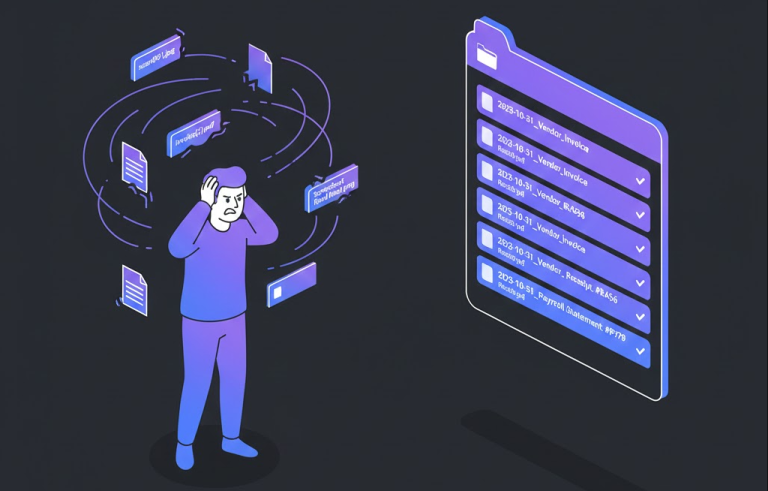
Every month end, you play the role of “Digital Janitor.” You log into Gmail, hunt for attachments from clients, download them one by one, rename them (because “Scan_001.pdf” is useless), and manually drag them into a nested folder structure (Client > 2023 > October). It’s low-value click-work that breaks your flow and risks missing a crucial tax document.
- Time Saved: 2–5 hours per month (depending on client volume)
- Difficulty: Intermediate
- Tools Needed: Zapier (Free or Starter Plan), Gmail/Outlook, Google Drive/Dropbox/OneDrive
The Strategy (The “How”)
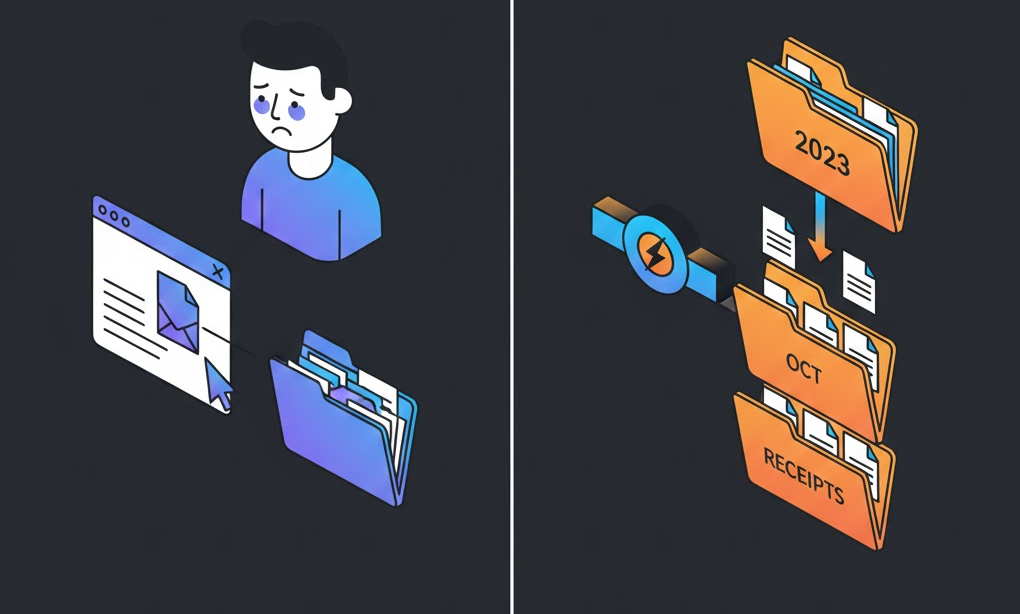
We will use Zapier’s AI Copilot feature to build a robust automation pipeline. The strategy is to create a “Listening Ear” on your email. When a specific client sends an attachment, Zapier will catch it, extract the date to determine the correct filing period (e.g., “October”), and file it into a dynamic folder structure automatically. If the folder doesn’t exist, Zapier will create it for you.
Step-by-Step Workflow
Note: We will use prompts designed for Zapier’s AI Copilot (the text-to-workflow builder) to generate the structure, then refine the settings.
Step 1: The “Receipt Catcher” Trigger
Context: We need to isolate client receipts from regular spam or chatter. We will filter based on a specific Gmail Label (e.g., “To_Process”) or specific sender addresses.
The Prompt:
(Paste this into Zapier’s “Create a Zap” AI chat box)
Act as a Automation Engineer. Create a trigger using Gmail.

Constraint: The trigger should only fire when a new email is received that meets TWO conditions:
1. It contains an Attachment.
2. It is labeled "Receipts" in my Gmail inbox.
Why this works: Using the “Label” constraint is safer than triggering on every email. It gives you human control—you simply tag an email as “Receipts” in Gmail, and the robot takes over from there.
The Output:
- Zapier will build a trigger block: Gmail: New Attachment (filtered by Label: Receipts).
Step 2: Dynamic Date Formatting (The “Smart Filer”)
Context: Google Drive doesn’t know what “Today” is in terms of folder structure. We need to convert the ugly email timestamp (e.g., 2023-10-24T14:30:00Z) into clean Folder Names like 2023 and October.
The Prompt:
(Add this as the next step in the Zapier Copilot)
Add a 'Formatter by Zapier' step.

Action: Date / Time.
Input: The 'Date' from the Gmail trigger step.
Output Format: Custom.
Format String: YYYY (for the year) AND MMMM (for the full month name).

I need these as two separate outputs to build a folder hierarchy later.
Why this works: This is the secret sauce. By extracting “2023” and “October” as separate variables, we can tell Google Drive to put the file in specific sub-folders rather than dumping everything in the root directory.
The Output:
- Formatter Step configured to output:
- Output 1:
2023 - Output 2:
October
- Output 1:
Step 3: The “Find or Create” Storage Logic
Context: If you just use “Upload File,” it will fail if the “October” folder doesn’t exist yet. We need a defensible logic that finds the folder if it’s there, or creates it if it’s a new month.
The Prompt:
(Add this as the final action in Zapier Copilot)
Add a 'Google Drive' action step.

Action: "Find or Create Folder".
Constraint: Look for a folder named exactly like the [Month Output] from the previous step (e.g., "October").
Location: Inside the specific [Client Name] parent folder.

THEN, add a final step: "Upload File" to Google Drive.
File: The attachment from the Gmail step.
Folder: The ID of the folder found/created in the previous step.
Why this works: The “Find or Create” logic makes this workflow “Zero-Maintenance.” When November hits, you don’t need to update the Zap. It simply notices “November” doesn’t exist, creates it, and files the PDF there.
The Output:
- Action 1: Google Drive – Find a Folder (with “Create if doesn’t exist” checked).
- Action 2: Google Drive – Upload File (mapped to the ID from Action 1).
The “Pro-Tip” / Quality Control
The “Rename” Hack:
Don’t upload the file with its original name (scan009.pdf). In the Upload File step, under the “File Name” field, combine variables to standardize it instantly.
Configuration:
[Date (YYYY-MM-DD)]_[Sender Name]_[Original Filename]
Result:
The file lands in the drive as: 2023-10-24_ClientBob_Invoice101.pdf.
This makes the file searchable immediately without you typing a single character.
Troubleshooting (FAQ)
The Error: The Zap triggers multiple times for a single email, creating duplicate files.
The Fix: This happens because “New Attachment” triggers per attachment, not per email. If a client sends an email with 3 PDFs (Invoice, Receipt, PO), the Zap runs 3 times.
Solution: This is actually desired behavior for bookkeepers (you want all 3 files saved). However, if you get duplicates of the same file, ensure your Trigger is set to “New Attachment” and not “New Email,” as “New Email” might try to upload the signature images (Facebook logos, etc.) as files. Add a Filter step to “Only continue if file type contains .pdf or .jpg”.