ChatGPT Workflow for Bookkeepers: How to Convert PDF Statements to CSV for Reconciliation
There is no deeper pain in bookkeeping than a client who ignores your request for QBO/Xero accountant access and instead emails twelve months of scanned PDF bank statements. You are stuck manually transcribing hundreds of transaction lines, battling transposition errors, and praying the ending balance matches before you can even start the actual reconciliation work.
- Time Saved: High (1–3 hours per statement year)
- Difficulty: Intermediate (Requires ChatGPT Plus for file upload/analysis capability)
- Tools Needed: ChatGPT Plus (using GPT-4 / Advanced Data Analysis)
The Strategy (The “How”)
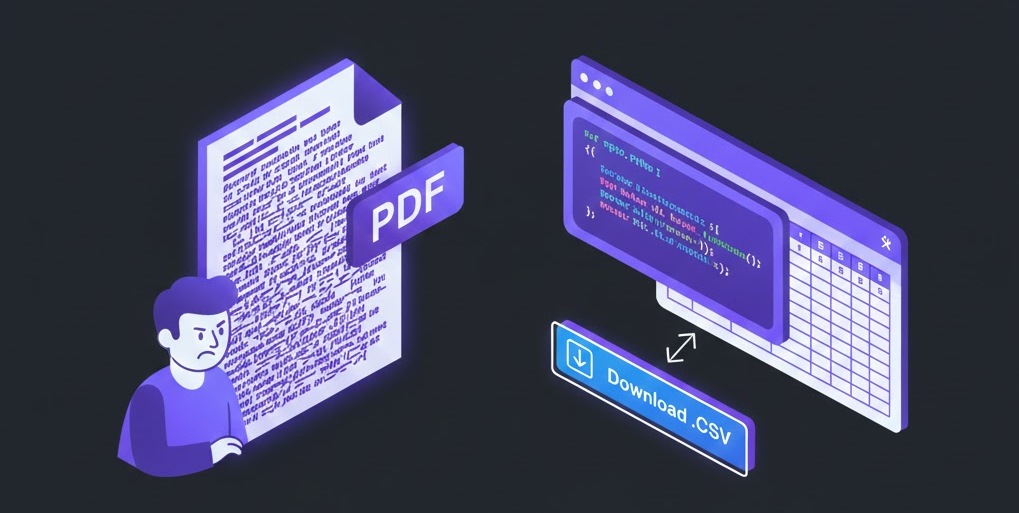
We will NOT use a standard “PDF to Text” converter, which results in jumbled garbage that requires hours of cleanup. Instead, we will leverage ChatGPT’s Advanced Data Analysis (formerly Code Interpreter). We will upload the PDF and instruct ChatGPT to write and execute Python code behind the scenes to intelligently identify table structures, parse the data row by row, and structure it into a clean DataFrame before exporting to CSV.
Step-by-Step Workflow
Step 1: The Contextual Upload & Persona Setup
Context: Before asking for extraction, we must prime ChatGPT with the context of accounting accuracy and provide the file.
The Prompt:
(Attach your PDF statement to the chat first, then paste this prompt.)
Act as a Senior Data Analyst specializing in Financial Accounting.

I have uploaded a PDF bank statement. My ultimate goal is to get a perfectly formatted CSV of the transactions for import into accounting software.

Constraint: Accuracy is paramount. Do not guess or hallucinate transaction details. If data is ambiguous, flag it rather than guessing.

First, analyze the structure of the PDF using Python. Tell me what columns you detect in the transaction table and how many distinct transaction rows you identify. Do not generate the full data yet.
Why this works: By setting the “Financial Accounting” persona, we emphasize precision. Asking it to analyze structure first via Python forces the AI to prove it understands the layout (e.g., detecting separate Debit/Credit columns vs. a single Amount column) before it attempts the heavy lifting.
The Output:
- “I have analyzed the PDF. It appears to be a Wells Fargo statement. I have detected a transaction table with columns for [Date, Description, Withdrawals, Deposits, Ending Balance]. I see approximately 145 transaction rows.”
Step 2: The Python Extraction & Cleaning Run
Context: Now we instruct ChatGPT to run the Python extraction, focusing on cleaning common PDF artifacts like multi-line descriptions and weird date formats.
The Prompt:
(Continue in the same chat window)
Excellent. Now, write and execute a Python script to extract all transaction rows into a pandas DataFrame.

Constraints & Cleaning Rules:
1. **Dates:** Convert all dates into strictly YYYY-MM-DD format.
2. **Amounts:** Create a single 'Amount' column. Ensure Withdrawals/Debits are negative numbers and Deposits/Credits are positive numbers. Remove any currency symbols ($) or commas.
3. **Descriptions:** If a single transaction description spans two lines in the PDF, merge them into a single cell. Remove any redundant header/footer rows that might get caught in the extraction.

Show me the first 5 rows of the resulting cleaned DataFrame so I can verify the format.
Why this works: This is the heavy lifter. We are explicitly asking for a Python script to handle the extraction, which is far more accurate than an LLM trying to “read” text visually. The specific cleaning rules handle the most common bookkeeping import errors (wrong date formats and positive numbers that should be negatives).
The Output:
- (ChatGPT will show a block of Python code running, then display a neat table preview):| Date | Description | Amount || :— | :— | :— || 2023-10-01 | ACH Payment – Gusto Payroll | -4520.50 || 2023-10-02 | Client Deposit – INV #1023 | 1200.00 |
Step 3: The Final CSV Export
Context: The data is clean in ChatGPT’s memory; now we just need the downloadable file.
The Prompt:
The preview looks accurate.

Please export this complete cleaned DataFrame into a CSV file named "ClientName_Statement_Cleaned_YYYY-MM.csv" and provide the download link.
Why this works: Simple and direct. It asks for the final output in the exact format needed for your accounting software import utility.
The Output:
- A clickable link saying:
[ Download ClientName_Statement_Cleaned_YYYY-MM.csv ]
The “Pro-Tip” / Quality Control
The “Opening Balance Check”:
Before importing the CSV into QBO/Xero, do a 10-second manual check in Excel.
- Open the generated CSV.
- Look at the PDF statement’s Starting Balance and Ending Balance.
- In Excel, highlight the entire ‘Amount’ column.
- Check the “Sum” at the bottom right of Excel.
- Does
Starting Balance (from PDF) + Sum of Amounts (from CSV)=Ending Balance (from PDF)? If yes, your CSV is perfect. If no, the extraction missed a line or flipped a sign.
Troubleshooting (FAQ)
The Error: The PDF is a “flat” scanned image (like a photo of a statement), and ChatGPT’s Python script cannot find any text to extract.
The Fix: You need to force ChatGPT to use its Vision/OCR capabilities before trying data analysis.
Solution: Change Step 1’s prompt to: “This PDF is a scanned image. First, use your OCR capabilities to transcribe the text accurately. THEN, act as a Senior Data Analyst and parse that transcribed text into a structured transaction table using Python…”